![tukios gradient logo-1.png]](https://help.tukios.com/hs-fs/hubfs/tukios%20gradient%20logo-1.png?height=40&name=tukios%20gradient%20logo-1.png)
Here's how to preview Transitions, Effects, Overlays, Borders, and Backgrounds.
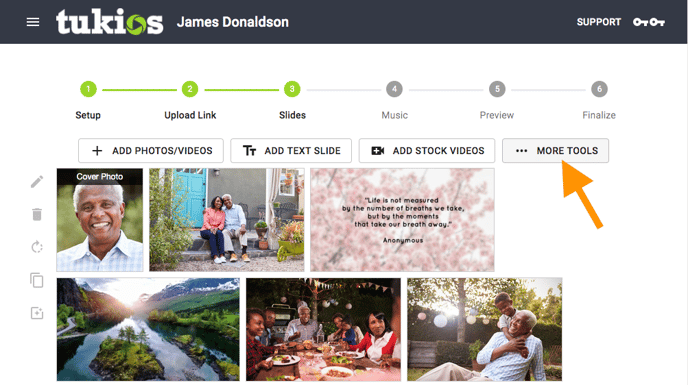
1- In the Video Creator, click the "More" button on the far right.
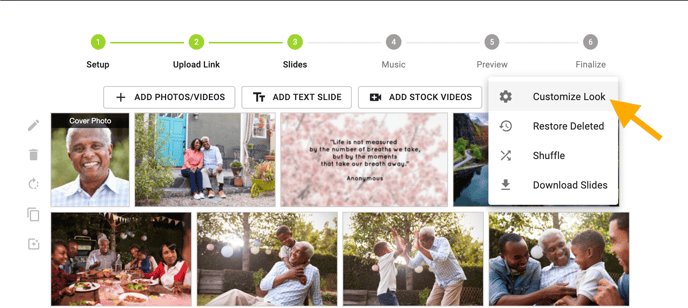
2- Click on "Customize Look" at the top.
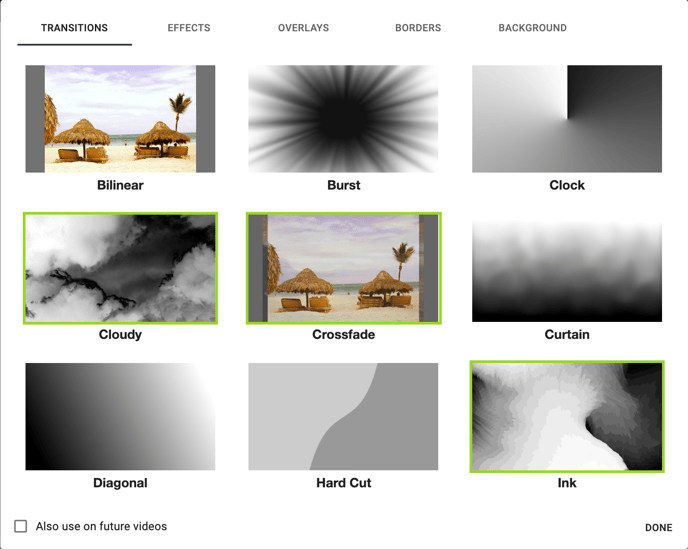
A - Transitions are the effects that happen between two (2) photos.
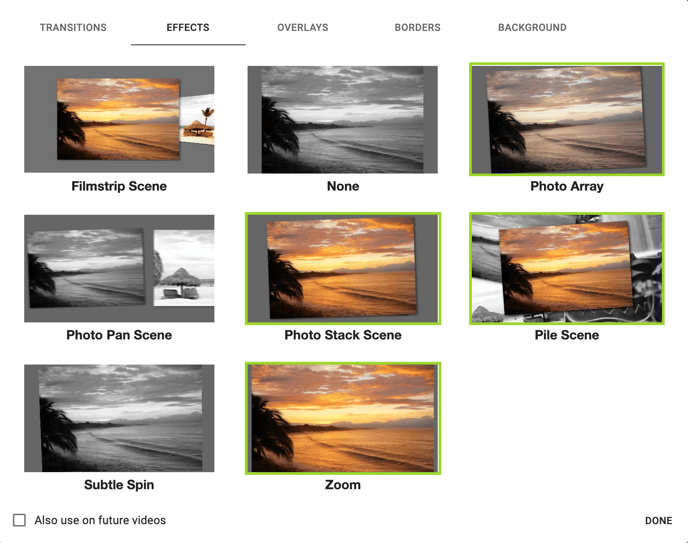
B - Effects happen to the individual photos (but also can affect a group of photos). These can be controlled individually in the Edit function on the photos.
C - Overlays are little transparent details over the video, such as particles.
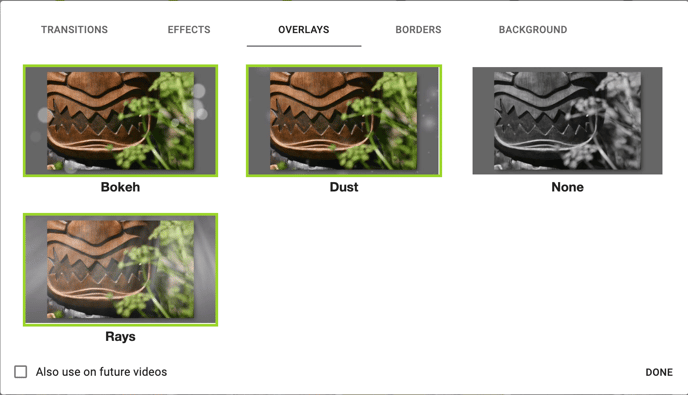
D. Borders determine the appearance of the edge of the photo.
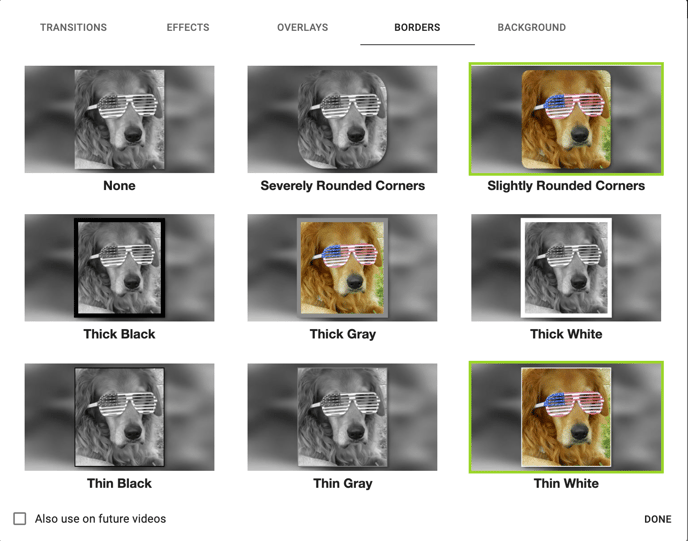
E - Backgrounds are the image type behind the photos.
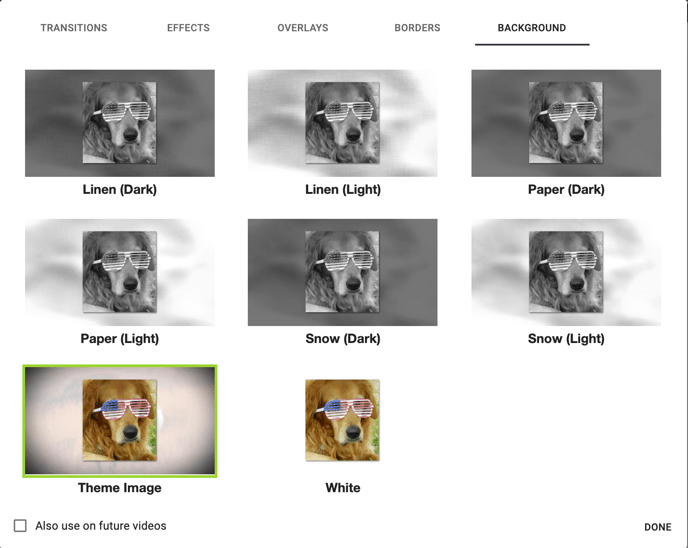
3- Each of the options can be previewed by hovering the mouse over the effect. This action will play a small loop of the effect or show the background.
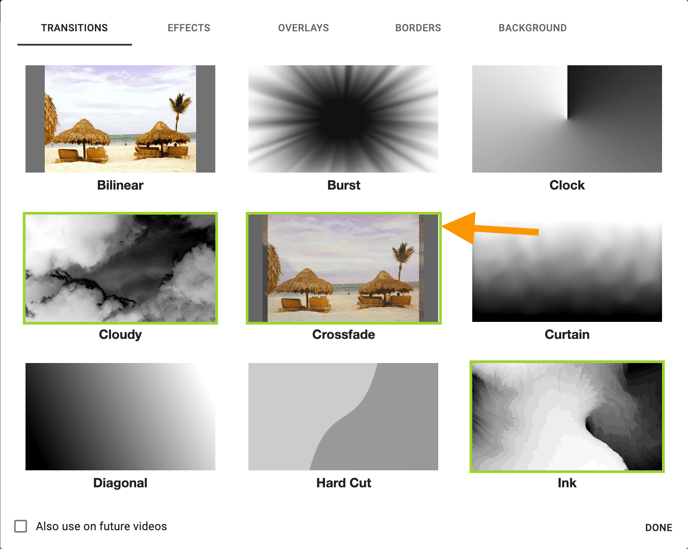
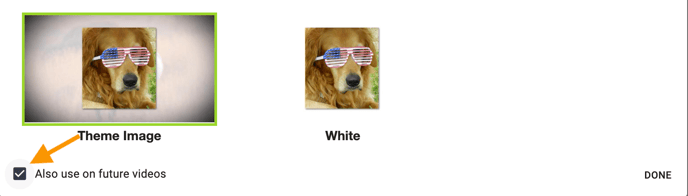
4- Click on the Transitions, Effects, Overlays, Borders, and Backgrounds you would like to include. The ones highlighted in green are on, and non-highlighted options are off. (NOTE: You can also save all of these customizations by checking the "Also use on future videos" box.)
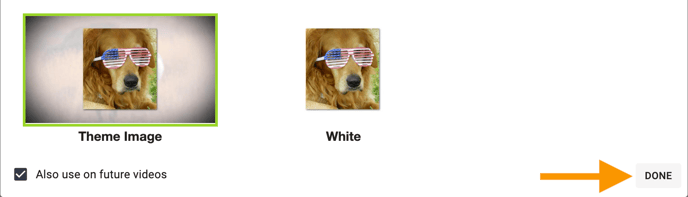
5- When you have chosen all of the things you want, click the "Done" button.
If you have any other questions, please feel free to email or call us
support@tukios.com | 801.682.4391